If you are using a different pair of headphones or earbuds, select another model to find the right troubleshooting steps.
Related articles
- The LED on the WF-C710N charging case continuously blinks orange (Applies if you are using the WF-C710N and the charging case indicator keeps flashing in orange at approximately 0.5-second intervals)
- The remaining battery charge of the charging case is unexpectedly empty
Solution
Note: The following procedure uses WF-C700N images for reference.
-
Clean the earbuds, inside the charging case, and the charging port of the earbuds, and then check the indicator of the charging case.
Make sure the earbuds are properly inserted into the charging case.
Charging may fail if the earbuds aren't touching the charging case or if the charging port is dirty.
After cleaning the earbuds, the inside of the charging case, and the charging port of the earbuds, set the earbuds into the charging case, and without connecting the charging cable, check the indicator of the charging case. For details on how to clean the earbuds, refer to our headphone cleaning and maintenance article.
Note: When cleaning, do not use compressed air to remove dust. This can cause dust to get into the microphone or sound outlet holes, leading to malfunction.Hints: Check again that the earbuds are properly inserted and not floating in the charging case.
- The indicator lights in green for about 3 seconds when one of the earbuds is stored in the charging case, and lights green again when both earbuds are stored
The remaining battery of the earbuds is 91% or more (WF-C710N) or 71% or more (WF-C700N). Wear the earbuds, connect to a device via Bluetooth, and check if you can hear the sound from the connected device.
If the sound cannot be heard, refer to this article: There is no sound, low sound, or sound is only heard from one side of the earbuds.- The indicator lights in orange for about 3 seconds when one of the earbuds is stored in the charging case, and lights orange again when both earbuds are stored
The remaining battery of the earbuds is between 90% and 1% (WF-C710N) or between 70% and 1% (WF-C700N). Charge the earbuds and go to Step 4.- The indicator doesn't light up when the earbuds are stored in the charging case
Remove the earbuds from the charging case, and store them again. If the indicator still doesn't light up, the remaining battery is 1% or lower. Charge the earbuds and go to Step 4.- The indicator repeatedly flashes twice in orange
The indicator shows an abnormal charging temperature. Go to Step 5.- The indicator repeatedly flashes slowly in orange
An error occurs while charging. Go to Step 5.
-
Leave the charging case in a place where the ambient temperature is between 15 °C and 35 °C (59 °F - 95 °F), and try charging again.
- The issue is resolved
- The issue may have been caused by the ambient temperature being too high or too low.
- The issue is not resolved
- Go to the next troubleshooting step.
-
Using the supplied USB Type-C cable, connect the charging case to a USB AC adaptor or computer, and check if the charging can be completed.
- The charging can be completed
- Use the USB Type-C cable that is supplied with the product. Charging may not be possible with a commercially available cable or a USB hub.
- The charging cannot be completed
- Go to the next troubleshooting step.
-
Set the earbuds into the charging case, connect the charging case using the supplied USB Type-C cable, and check if the charging can be completed.
Note: Clean the charging port before charging.- The charging can be completed
- The charging port of the charging case may have been dirty.
Note: Regular cleaning is recommended to prevent issues with charging. - The charging cannot be completed
- Go to Step 8.
- Set the earbuds into the charging case, connect the charging case using the supplied USB Type-C cable, and check the indicator of the charging case again.
- The indicator lights in orange when charging starts
The earbuds are in the process of charging. Wait until the earbuds are fully charged.- The indicator repeatedly flashes twice in orange
Go to Step 8.- The indicator repeatedly flashes slowly in orange
Go to Step 8.- The indicator doesn't light up
Go to Step 6.
- Check if you can charge a different device using the same AC adaptor or USB port.
Use the same AC adaptor or USB port on the computer to charge a different mobile device or product.- The mobile device or product can be charged
- Go to Step 7.
- The mobile device or product cannot be charged
- The AC adaptor or USB port may not be working. Contact the manufacturer for further assistance.
-
Clean the charging port of the charging case, and check if the charging can be completed.
If any dirt or dust is in or around the charging port, it may not be able to charge properly. Remove the dirt or dust with a soft, dry cloth before charging.
- The charging can be completed
- The charging port of the charging case may have been dirty.
Note: Regular cleaning is recommended to prevent issues with charging. - The charging cannot be completed
- The earbuds may be malfunctioning and may require service.
-
- The issue is resolved
- The issue may have been caused by a temporary malfunction of the earbuds.
- The issue is not resolved
- Go to the next troubleshooting step.
-
Initialise the earbuds.
Initialisation returns the earbuds to the factory settings and deletes all Bluetooth pairing information.- WF-C710N Help Guide (Initialising the headset to restore factory settings)
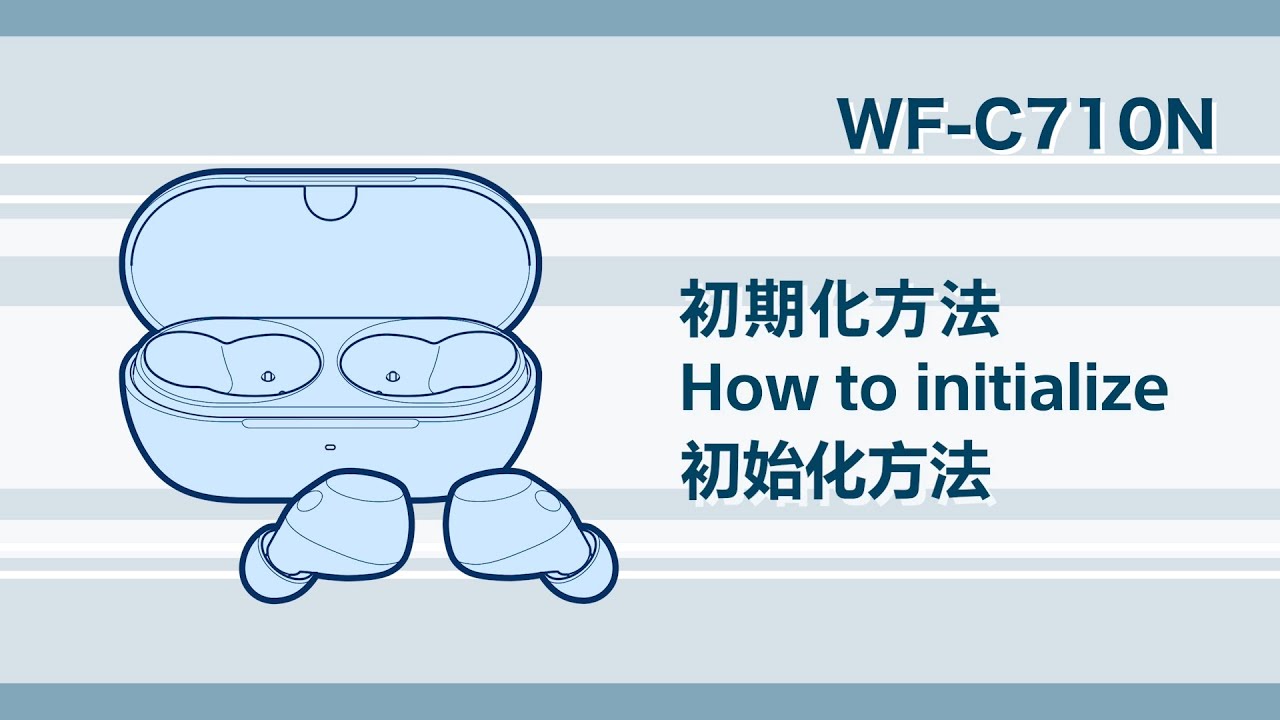
- WF-C700N Help Guide (Initialising the headset to restore factory settings)

- The issue is resolved
- The issue may have been caused by a temporary malfunction of the earbuds.
- The issue is not resolved
- The earbuds may be malfunctioning and may require service.
- WF-C710N Help Guide (Initialising the headset to restore factory settings)
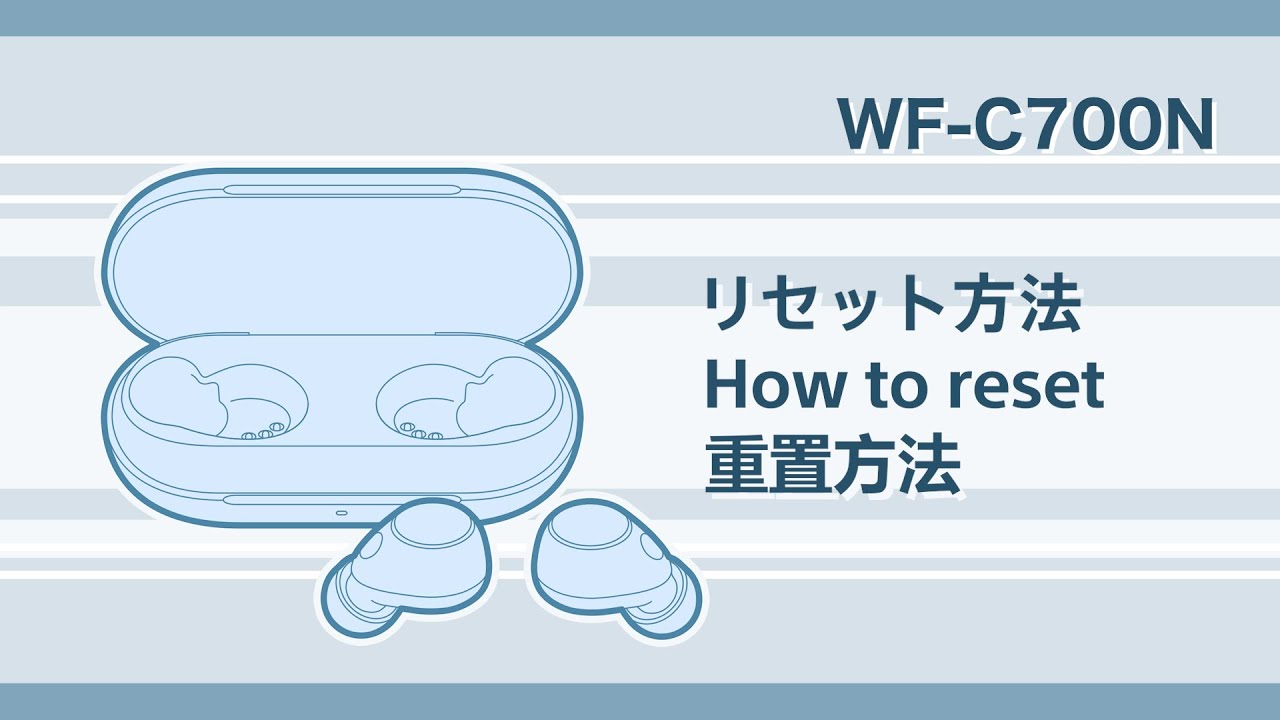
For more information, check out our Headphones Troubleshooting Guide.